
I NEED HELP
FIND CLEAR SOLUTIONS TO COMMON QUERIES AND DISCOVER EASY-TO-FOLLOW INSTRUCTIONS
Your account is created by your school. Use the  icon to open the login page, then enter the email and password provided by your school.
If you have already received login details, you can sign in directly. If you wish to change your password, you can click on the “Forgot Password” option on the login page.
Note: If you don’t have login credentials yet, please contact your school to receive them.
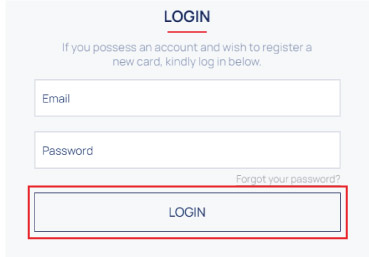
After purchasing your RFID card from the school, and setting up your account, you're all set to select your meal plan.
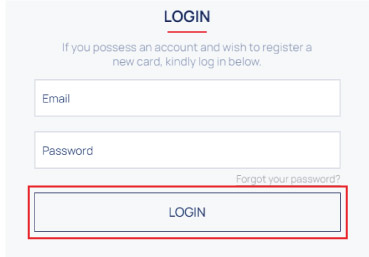
Access your account by clicking on the
icon and entering your email and password in the designated fields.
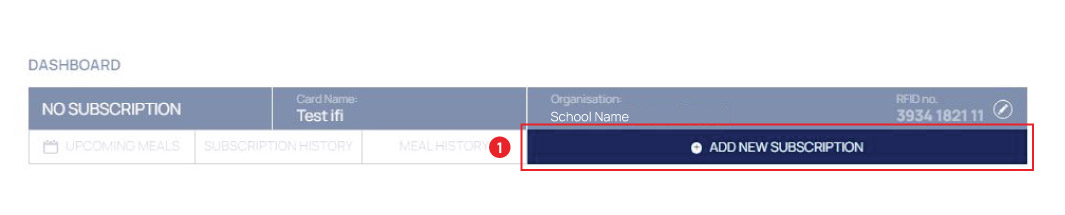
From your dashboard, simply click the big blue button "ADD NEW SUBSCRIPTION". You’ll be directed to the Meal Packages page, where you can choose your plan by clicking "ADD TO CART" and then "PROCEED TO CHECKOUT".
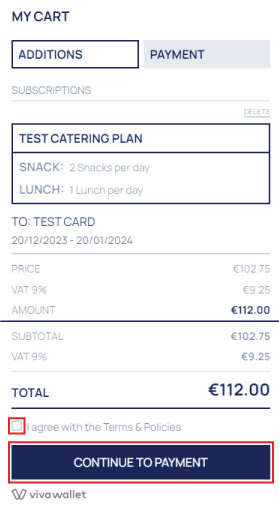
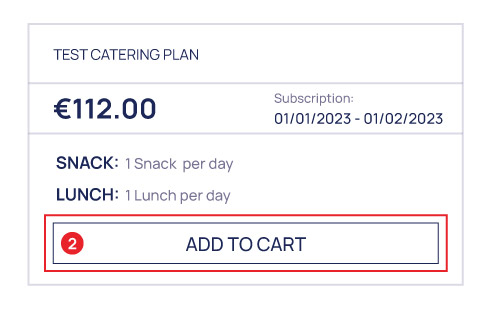
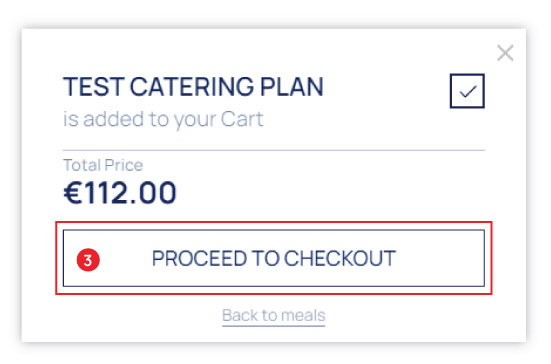
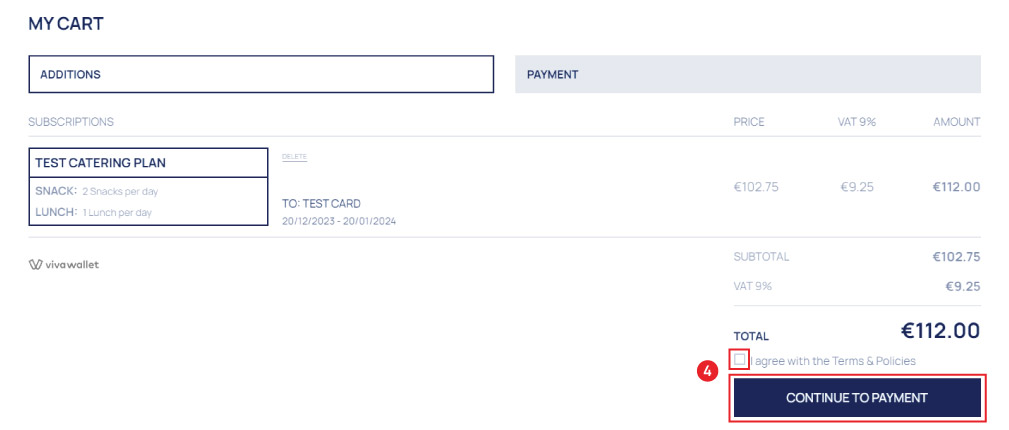
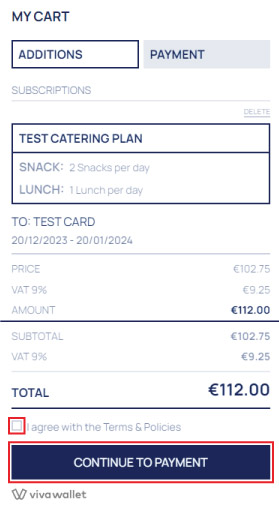
Finally, after accepting the policies, click "CONTINUE TO PAYMENT". Complete the payment process by entering your card information, and your meal plan will be purchased and ready to use!
To extend your subscription beyond the current period, follow these straightforward steps:
Simply click the prominent "ADD NEW SUBSCRIPTION" button.

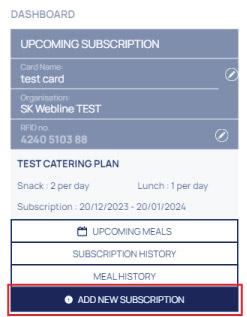
Then, proceed by following the purchase steps outlined in Question 4: "ADD TO CART" ,"PROCEED TO CHECKOUT" and finally, "CONTINUE TO PAYMENT"
You can set up the student’s Canteen Wallet in the dedicated section.
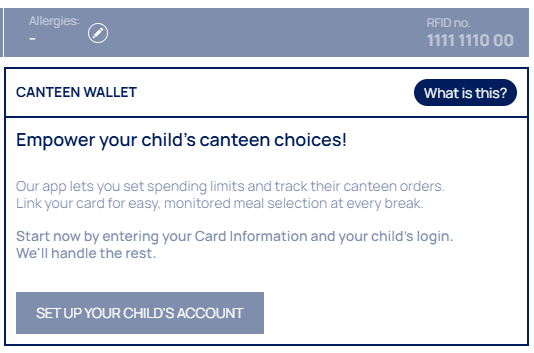
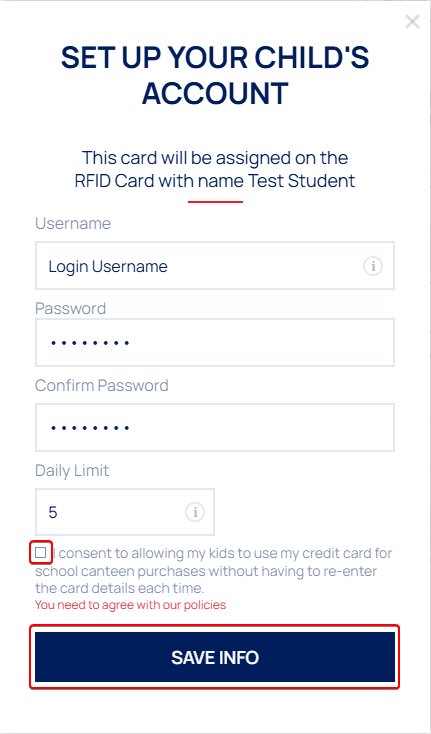
Click the button labeled "Set up your child's account" to open a registration form. You will be asked to enter a login username, password, and a daily spending limit for the student. Do not forget to accept the policies by checking the box provided.
After the account is created, you can modify the student’s username or password anytime by clicking the corresponding edit buttons shown on the screen.
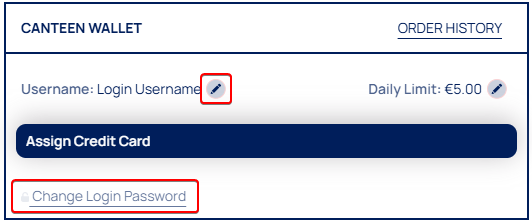
Next, you can assign a credit card for quick payments, eliminating the need to re-enter card details each time. Just click the button to begin the process.
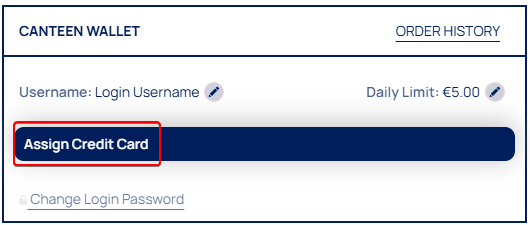
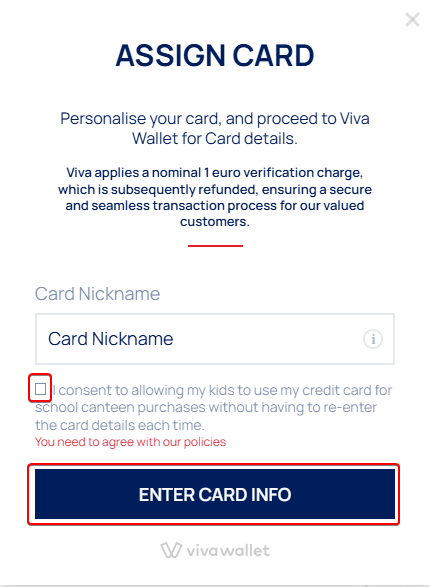
Add a card nickname, accept the policies, and click the "Card Info" button. You will be redirected to Viva Wallet, where you can securely assign your card. Once completed, the card will be linked to the account.
Additionally, you can set the student’s allergy information to help prevent the purchase of restricted food items in the canteen.

- Early years - is Nursery to Reception
- Lower primary - is year 1-3
- Upper primary - is year 4-6
Early years, Lower primary and Upper primary classes for Pascal School